Body
Purpose:
This document provides instructions on how to access your OneDrive files in presentation rooms and electronic classrooms.
How to:
Accessing OneDrive on a Classroom Computer
- When you login to a presentation or electronic computer, an index of your OneDrive files is automatically created.
**Please note that your files are not synced until you decide to use them.
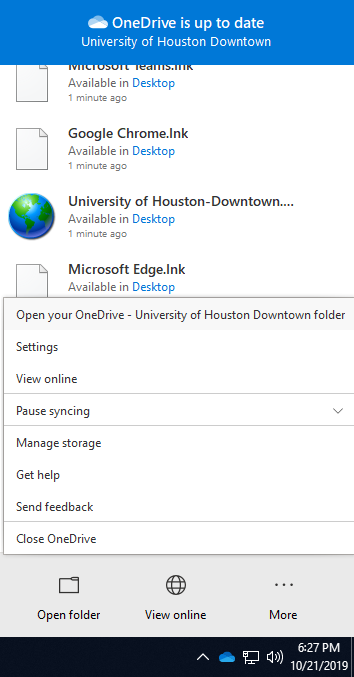
- Click the blue OneDrive cloud icon in the taskbar notification area.
- Select Open your OneDrive – University of Houston-Downtown folder
Browsing Files and Status on OneDrive
- Once you click on Open your OneDrive, you now have access to your OneDrive files.
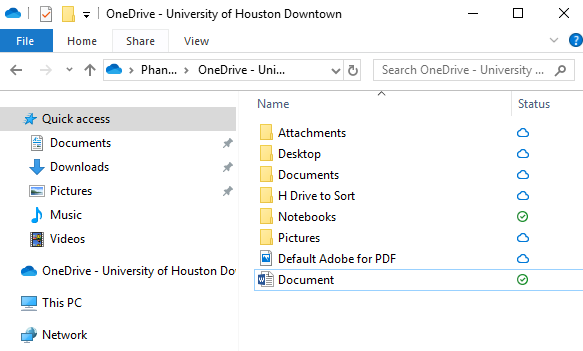
Note the status icon by your file.
The Blue Cloud means it will take a moment to download the file.
The Green Check means it is already downloaded to the PC and ready for immediate access.
Saving a file to OneDrive
- You can drag and drop a file to this folder to sync to the cloud.
- You can also save a file directly to this OneDrive folder location.
For more information regarding syncing OneDrive files, please visit Microsoft OneDrive support page.
Additional Information:
Need additional information or assistance? Contact the itservicedesk@uhd.edu
Q&A: