Purpose:
Log Into Linux Using Putty, WS_FTP or Oracle SQL
How to:
|
On-Campus
-
On a UHD computer, select PuTTY from Start > All Programs.
-
Follow steps starting from Step 6 below.
Off-Campus
-
Download PuTTY if not installed: PuTTY Download.
-
Click putty.exe and save it to your preferred location.
-
Double-click the PuTTY icon to launch.
-
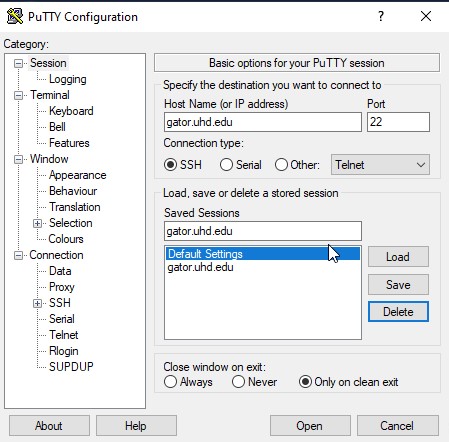
In the PuTTY Configuration window:
-
At the login as prompt, enter your username and press Enter.
-
Enter your password (cursor will not move) and press Enter. Once logged in, you’ll see a prompt like:
[username@gator username]$
|
Access Oracle SQL Using Your Linux Account
|
- Log into Linux following the steps above.
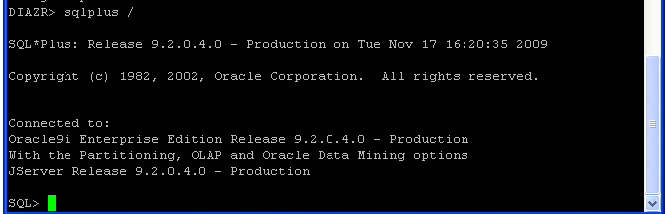
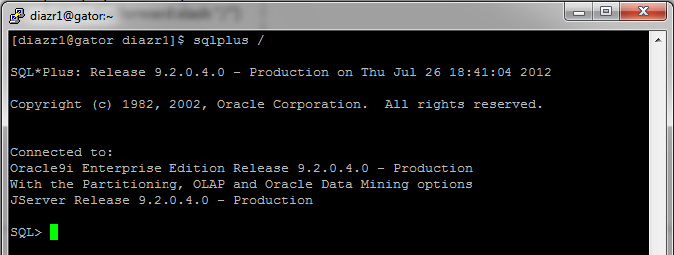
- At the command prompt, type:
sqlplus / and press Enter.
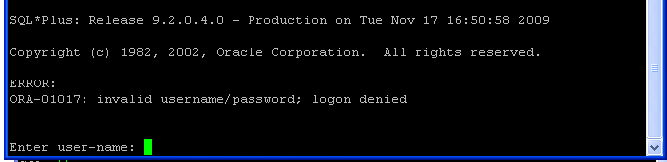
- If you have Oracle database access, you’ll see the
SQL> prompt.
|
Create an SQL Program File
|
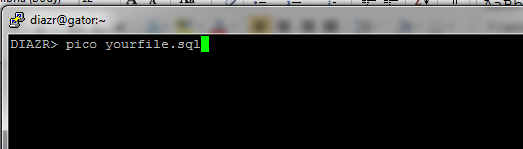
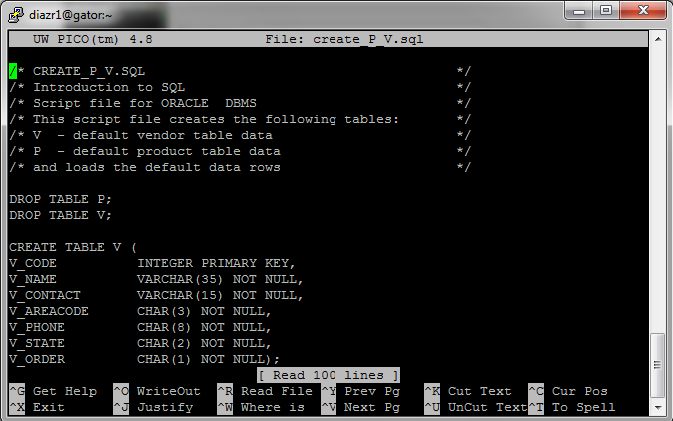
- Use the Pico text editor:
$ pico yourfile.sql
- Ensure the file has a
.sql extension (Linux is case-sensitive).
- Paste your SQL code into the PuTTY session.
- Save and exit:
Ctrl + X, then Y, then Enter.
(To exit without saving: Ctrl + X, then N, then Enter.)
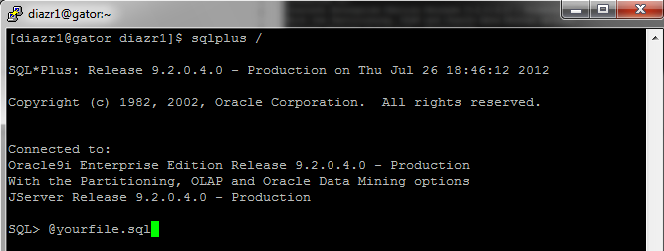
- Run your SQL program:
SQL> @yourfile.sql
|
Additional Information:
If you have questions or need further assistance, please email itservicedesk@uhd.edu or submit a request via our Service Portal.
We'd love to hear your feedback. Please take a quick survey to help us improve our IT services: